Channels, buses & sends
Create mono or stereo strips, connect physical inputs and send several instruments to one shared reverb bus. Route the resulting mix to selected outputs.

Turn your Windows computer and USB audio interfaces into a shared rehearsal mixer. Connect instruments, shape each channel, add effects and control the mix from your phone or tablet.
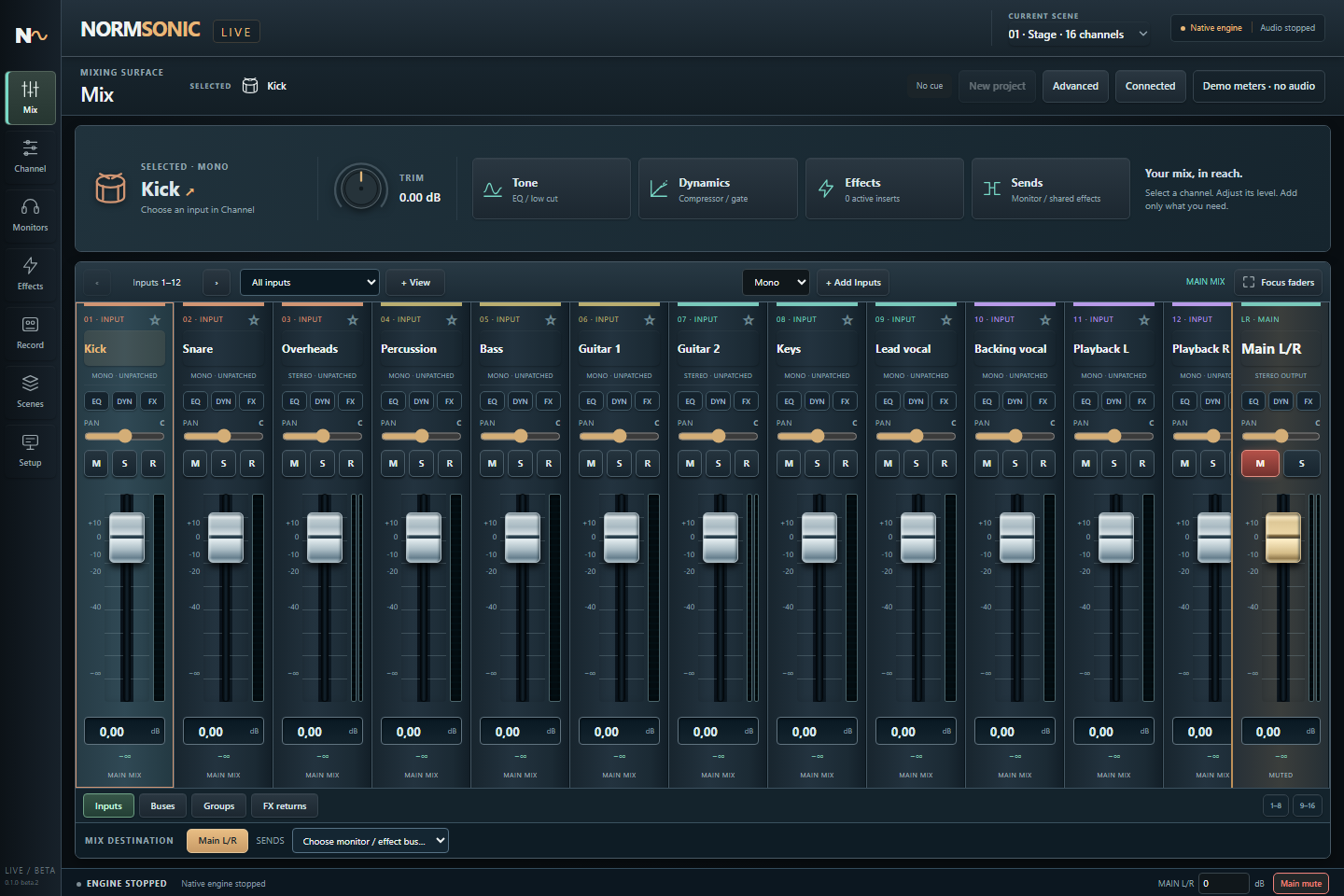
A routing workspace for rehearsals, small sessions and experimenting with live effects. Build your own channel layout and keep essential controls close.
Create mono or stereo strips, connect physical inputs and send several instruments to one shared reverb bus. Route the resulting mix to selected outputs.
A 12 dB/octave high-pass filter, four EQ bands, linked gate/expander and peak compressor. No lookahead or added algorithmic delay in the built-in strip.
Add compatible VST3 effects to individual channels or buses. Adjust plugin parameters and hot bypass while audio runs. Disabled inserts are not instantiated.
Use the host screen or a browser on the same local network. Password-protected control shares faders, processing settings and live meters between clients. Audio stays on the host computer.
Record selected physical input tracks as float WAV files before trim, channel processing, VST effects and faders, after device synchronization. Capture-health metadata reports acquisition problems separately from disk integrity.
Save routing, channel settings and native VST component/controller states. Scene recall offers safes for levels, processing, routing and effects. Stop audio before structural changes or native scene recall.
Load WAV tracks, assign them to mixer channels and replay the session through your routing and effects. Adjust the mix while the band takes a break.
Control several channel levels together with DCA groups while preserving each strip’s own fader and mute. See signal peaks and actual built-in gate/compressor gain reduction.
See the actual beta interface on a computer and in a phone-sized browser. Open any image to inspect it at full size.
Actual beta browser control interface. Audio is stopped in these captures; the meters are idle.
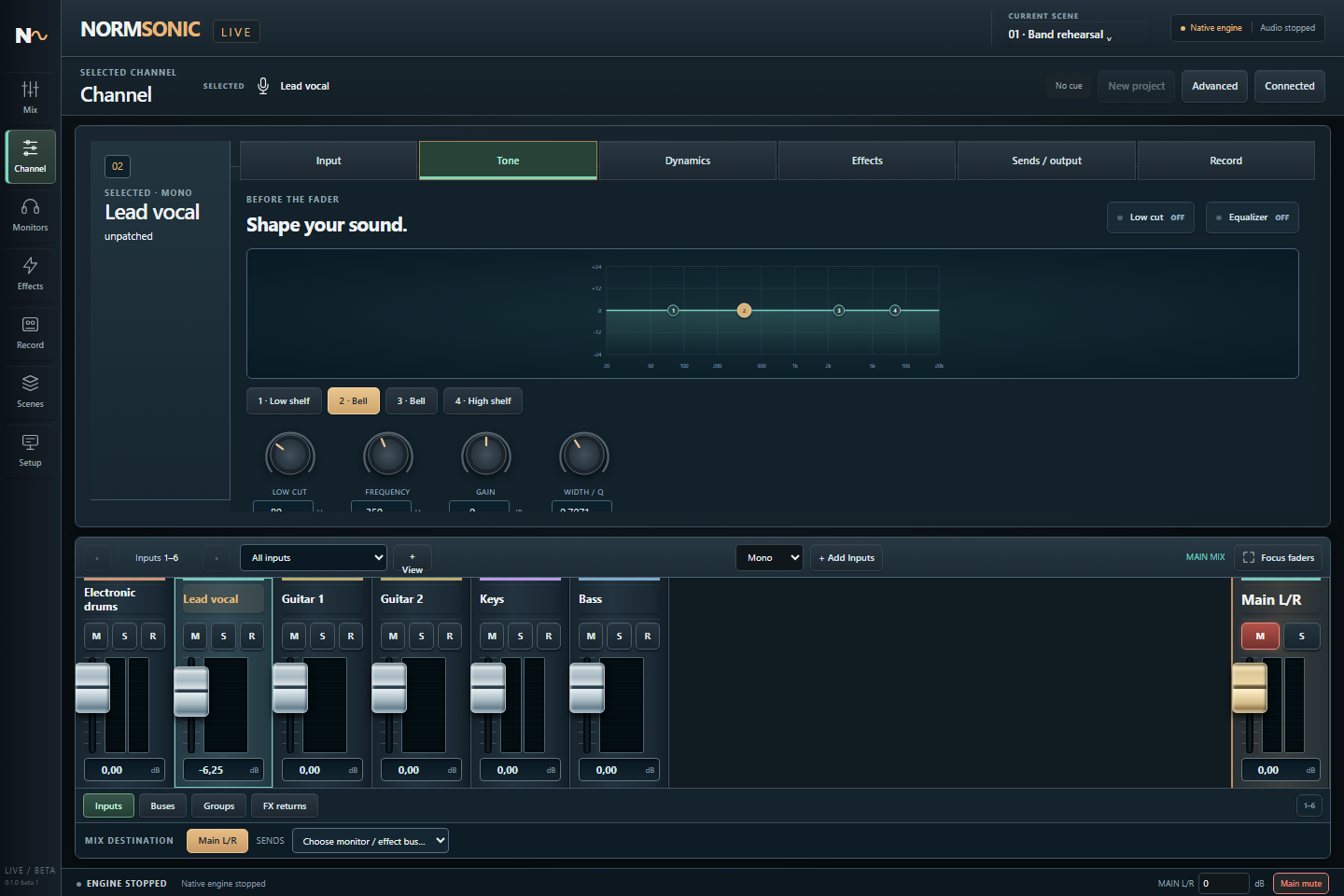
A high-pass filter and four EQ bands before the fader, with a clear response curve.
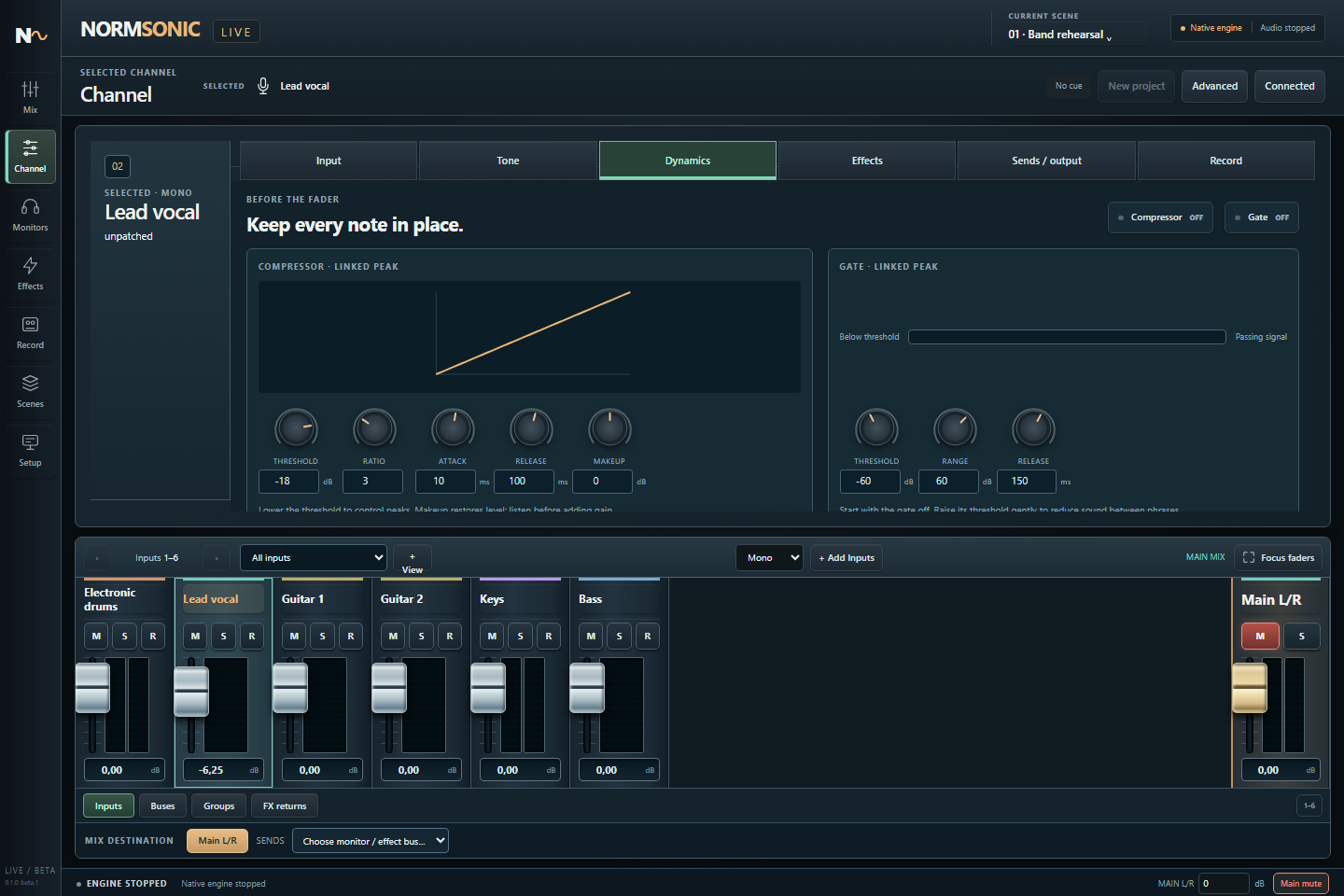
Keep peak compression and gate controls together in the selected channel.
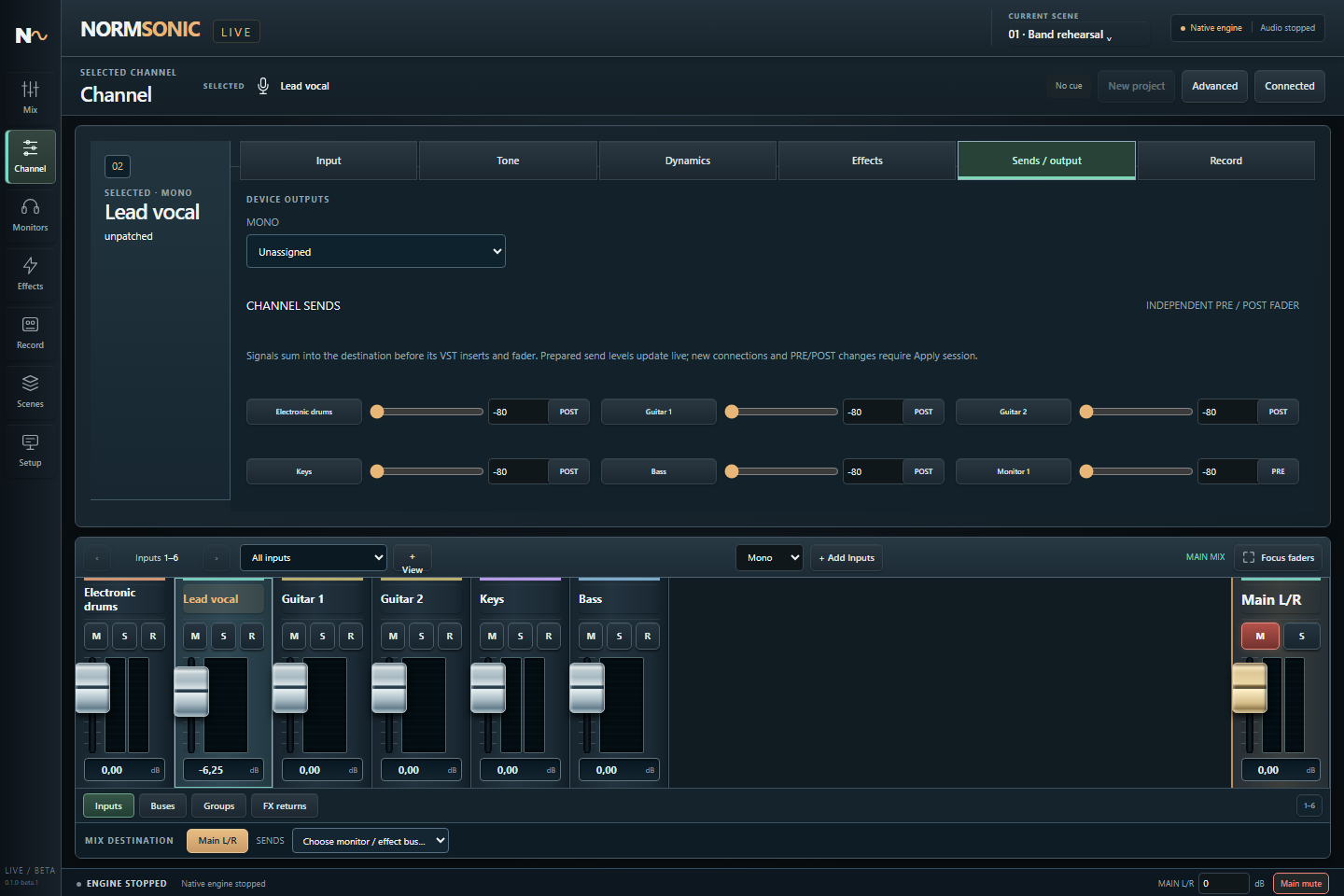
Choose the output destination and prepare shared effect or monitor sends for each channel.
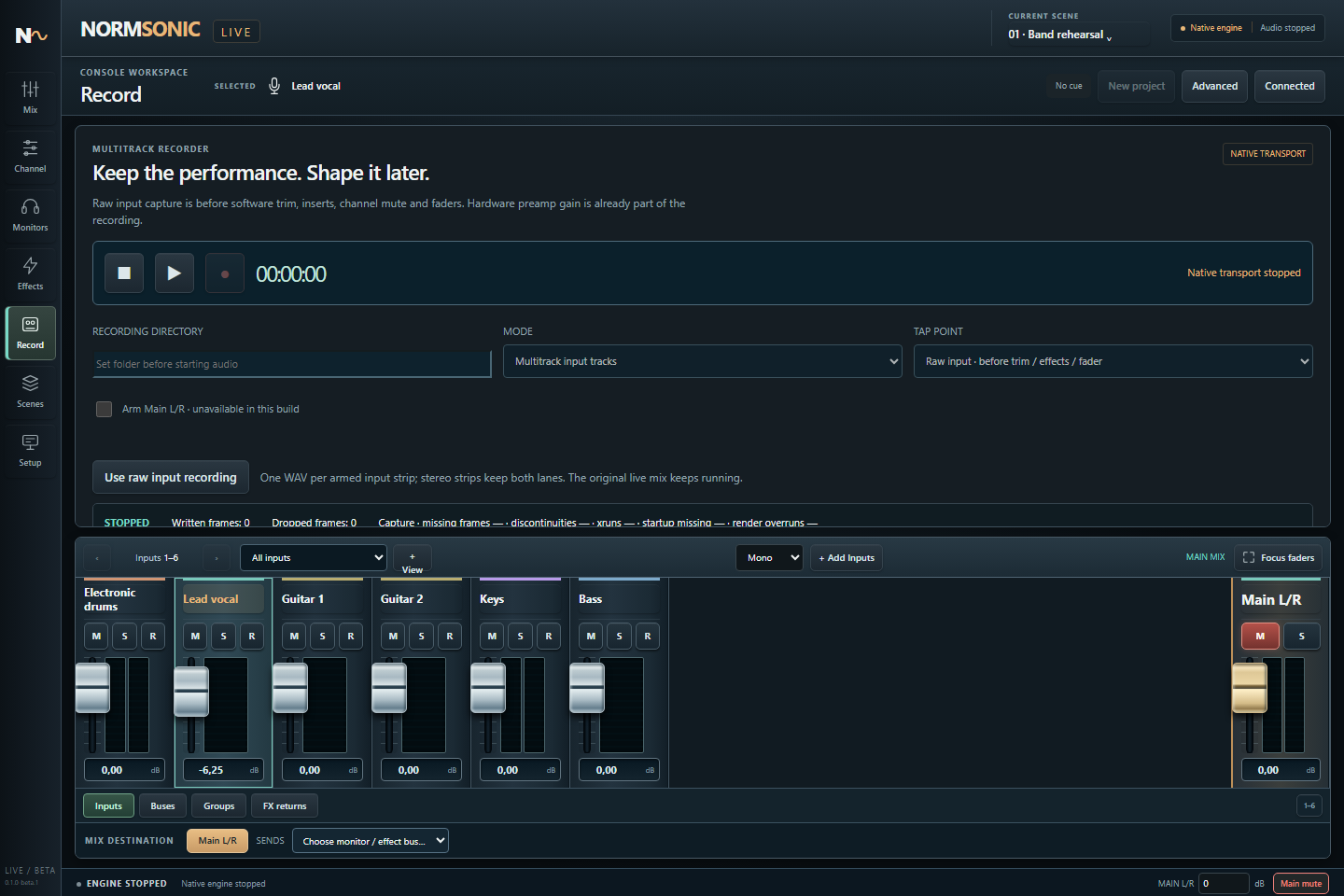
Arm physical input tracks and keep the original takes before software processing and faders.
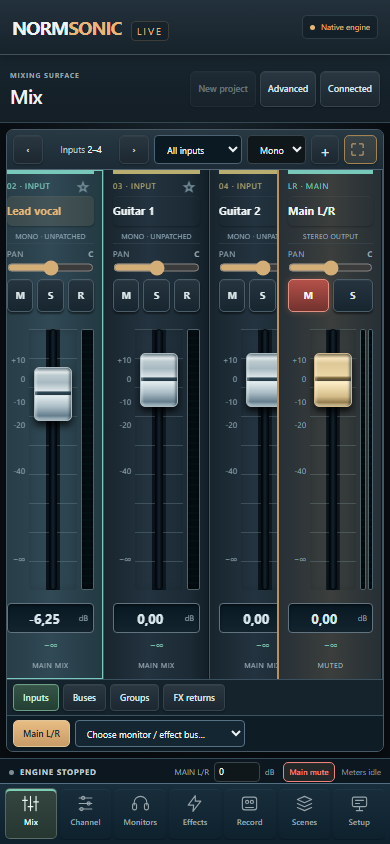
A compact phone view keeps channel levels close, with Main L/R fixed at the side.
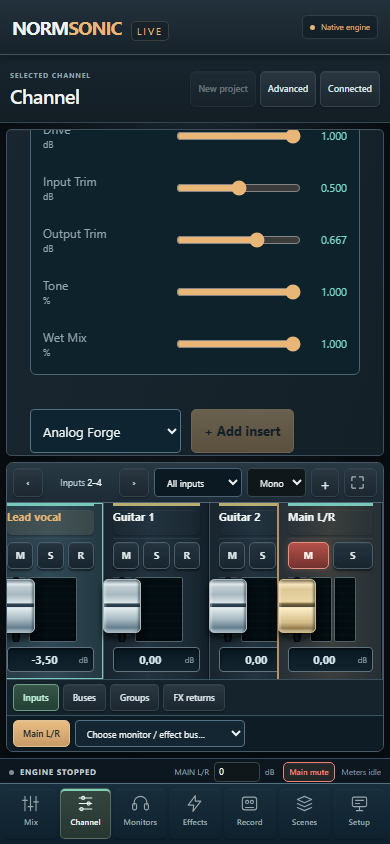
The Parameters panel controls the hosted VST3 instance. Its original Editor opens on the Windows host.
Choose one complete endpoint per physical interface and direction. UMC404HD “1–4” endpoints expose four lanes; do not select their overlapping “1–2” and “3–4” aliases as additional interfaces.
Keep electronic drums and keyboards as stereo pairs on the same interface. Create mono strips for vocals, guitars and bass, then assign their physical input lanes.
Use channel EQ and dynamics, add effects and choose Main speakers / headphones in Setup. Press Start audio: the stopped engine applies pending settings and selects its clock and shared sample rate automatically. Manual clock settings are in Advanced.
Enable local-network control with a password. Move faders from your phone or tablet and arm the raw tracks you want to keep. Set the recording folder on the host computer.
This is beta software. Device compatibility, useful channel count and round-trip latency depend on your drivers, buffer settings, computer and inserted effects. Check your complete setup before relying on it for a session.
Windows x64, Microsoft WebView2 Runtime and a working WASAPI audio driver. Use a wired connection for the host when practical; browser control also works over your local Wi-Fi. The first release does not include ASIO, macOS or Raspberry Pi binaries.
Beta.2 passed 18 native suites, 482 existing interface checks and 72 additional automatic-setup and responsive-interface checks. A new 15-second silent-output hardware test used two UMC404HD interfaces plus Logitech C270, with no ongoing acquisition faults after startup. The earlier beta.1 also passed a 30-minute two-UMC run with eight input lanes, eight VST3 effects and six verified raw WAV files, plus recording, scene/session restoration and WAV playback checks.
The hardware run used muted outputs and had no instruments or analog loopback connected. It does not measure analog round-trip latency, certify every interface, or replace listening to your complete setup. Final manual acceptance of native plugin-editor mouse gestures and Windows file-selection dialogs is still pending. This release is a beta; test your setup before relying on it for a performance.
Quick answers for setting up this first Windows beta. The ZIP includes a more detailed setup and compatibility guide.
Assign the channel input, choose Main speakers / headphones in Setup and press Start audio. Clock and shared sample rate are automatic. A new input selected while running is marked PATCH PENDING: stop audio, then press Start audio to apply it. Faders and already prepared processing controls still work live. Advanced offers manual clock settings.
Demo meters are a local visual demonstration with no audio. They work only while audio is stopped and no recording or engine operation is active. SIM labels identify simulated levels. Starting real audio clears the demonstration and shows genuine meters; demo animation is not shared between devices.
Select its channel, open Effects and use Parameters for the hosted insert. Changes are shared with the host and other connected browsers. Editor opens the plugin’s own window on the Windows computer. Add or enable an insert while stopped and apply the session first.
Faders, pan, mute, built-in EQ and dynamics, prepared send levels, VST parameters and hot bypass remain live. Stop audio before adding or removing channels, changing device/source/output assignments, creating sends, changing insert chains or recalling a complete native scene. Apply the layout, then start audio again.
LIVE can combine supported WASAPI endpoints using adaptive sample-rate conversion for their independent clocks. This does not provide phase-calibrated alignment between separate cards. Keep each stereo pair on one interface and select one complete endpoint per device and direction; overlapping endpoint aliases are the same hardware.
Selected physical input tracks become float WAV files after device synchronization and before software trim, EQ, dynamics, plugins, mute and faders. Stereo strips retain both lanes. Set the recording folder on the host and arm the input tracks. Master/output and post-fader recording are not included in this beta.
Load WAV tracks on the host while stopped, assign them to mixer channels and apply the session. Then start audio and use playback through the same routing and effects. Tracks are decoded into memory before playback; the combined old/new preload budget is 512 MiB of decoded audio, rather than WAV file size. Use shorter takes when needed.
Connect both devices to the same trusted local network. Enable LAN control in the Windows application, choose a password and open the displayed IP address and port in your browser. Audio stays on the host. Enable control and set the password again after restarting the application; the password is not stored in project files.
NORMSONIC LIVE 0.1.0-beta.1 is a free Windows x64 ZIP containing the compiled application and its required proprietary web-interface files. The C++ audio-host source is private and is not included. See the included notices, setup guide and compatibility notes.
Free to use · Compiled Windows download
Unpack the complete ZIP, keep its folders together and run NormsonicLive.exe. Follow the included setup guide before connecting inputs to loudspeakers.
Questions or beta feedback? Write to info@normsonic.com and include your interface, driver version, sample rate and buffer setting. info@normsonic.com
e17da252105859c3a588ff1392c1a10af5e78eb179aa129823678999a9a906cd