A modular host for live audio and WAV processing, with file browsers built in.
Host input/output buses, compatible VST3 and CLAP audio buses, and module-to-module cables.

Connect effects with virtual cables. Build serial chains, parallel branches and sidechain routes, or process a WAV through your own setup. Use RACK on its own or inside a VST3 DAW.
Beta software: check your interface, host and complete signal path before using it for a performance.
ba06c70b77c03904832235d79f7c480457e5522469015514183463fa51e9be87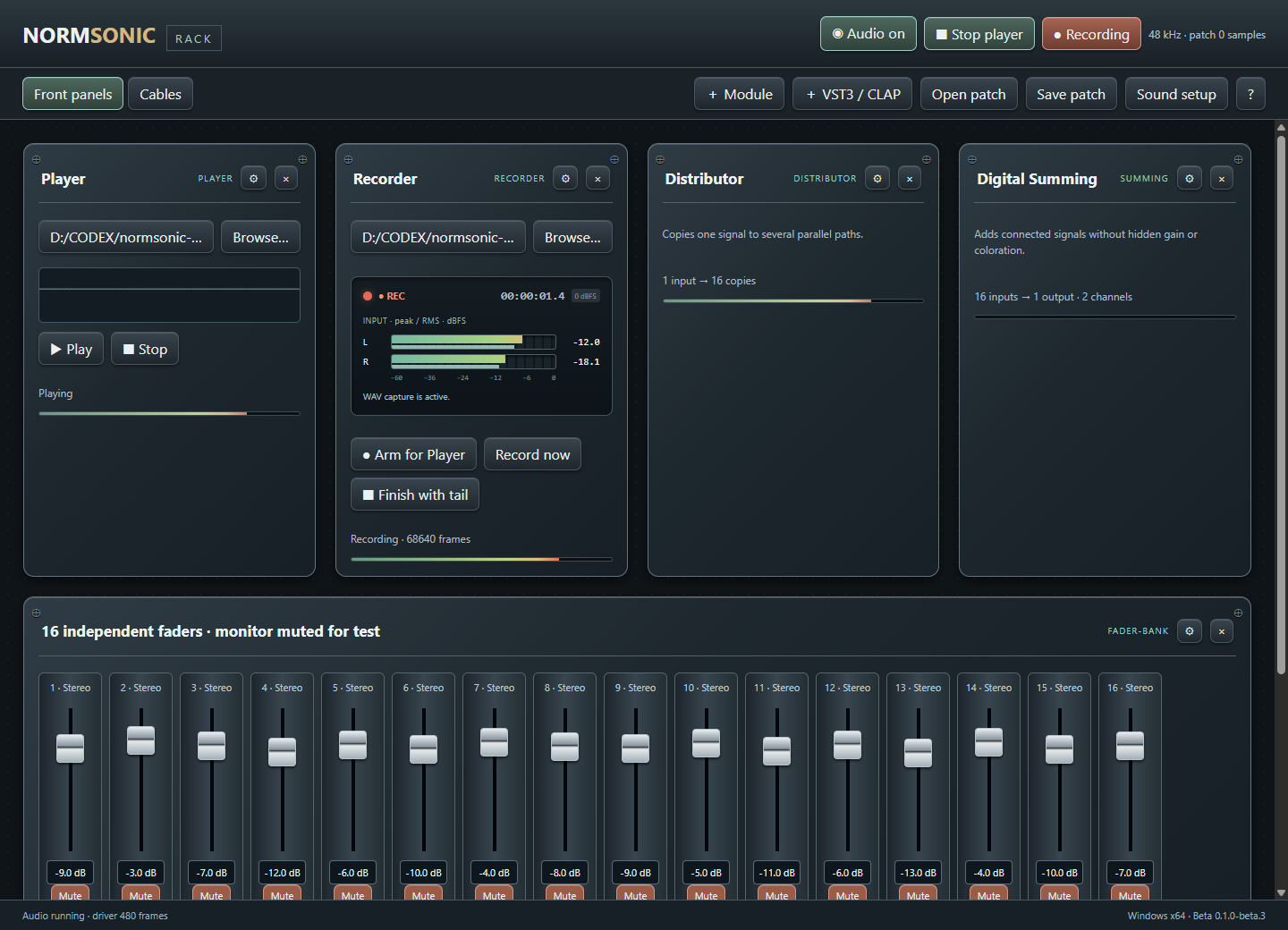
Host input/output buses, compatible VST3 and CLAP audio buses, and module-to-module cables.
Add modules, choose files with Browse and connect the ports. For standalone use, select one audio interface and start audio. Use Save patch to keep your setup.
Serial and parallel routing, separate sidechains, module parameters, file and folder browsers, project Open/Save dialogs and synchronized built-in WAV playback/recording.
Windows x64. Standalone WASAPI with one interface, or a VST3 plugin using the DAW’s device and clock. Compatible plugins only; no universal host or zero-latency promise.
Switch to Cables to connect real module inputs and outputs. Audio paths and purple Sync/event links remain separate. Drag module headers to arrange your patch; use channel mapping tools when widths differ.
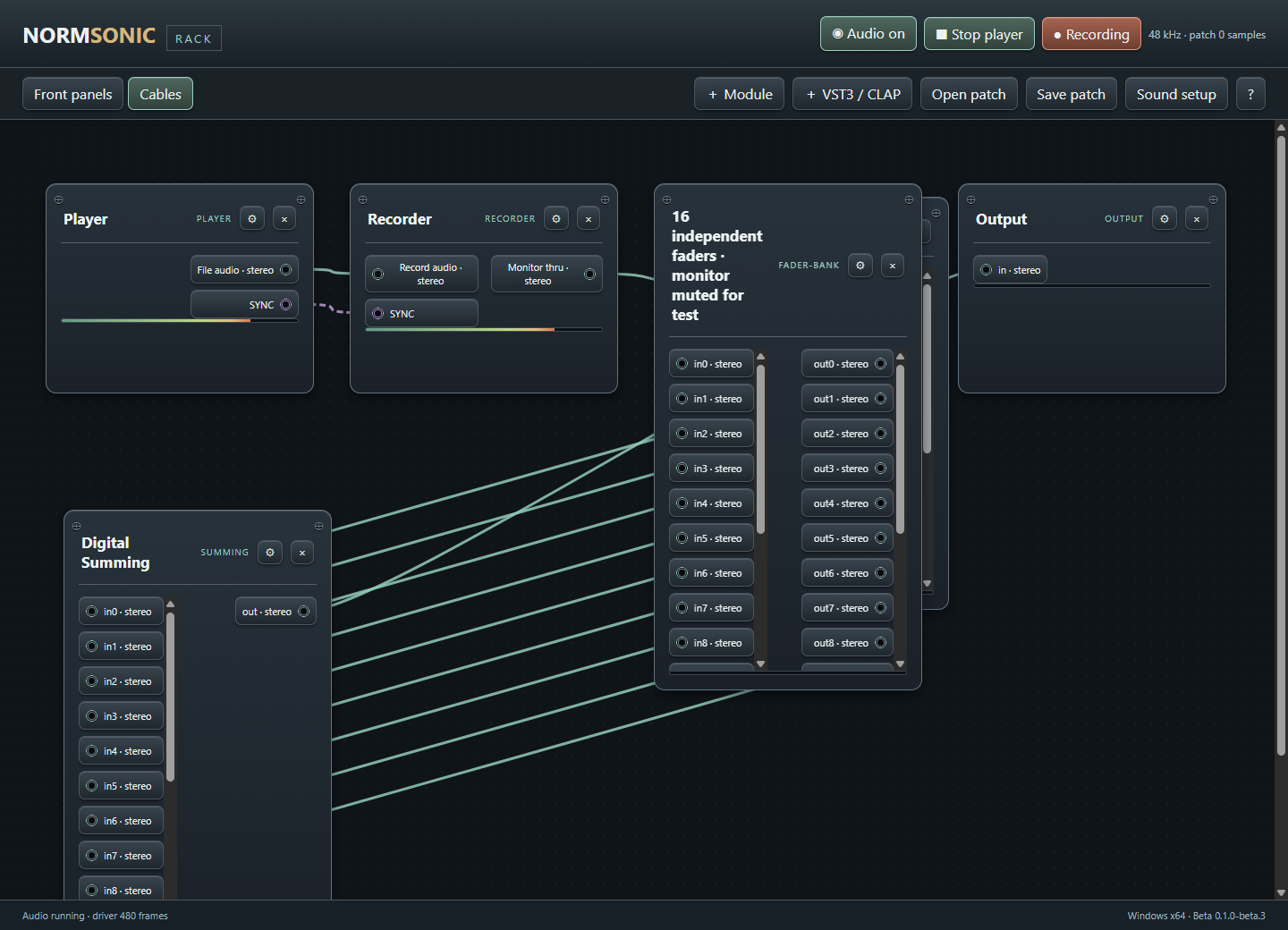
Actual NORMSONIC RACK Cables view during WAV playback and recording. The meters show the processed file signal.
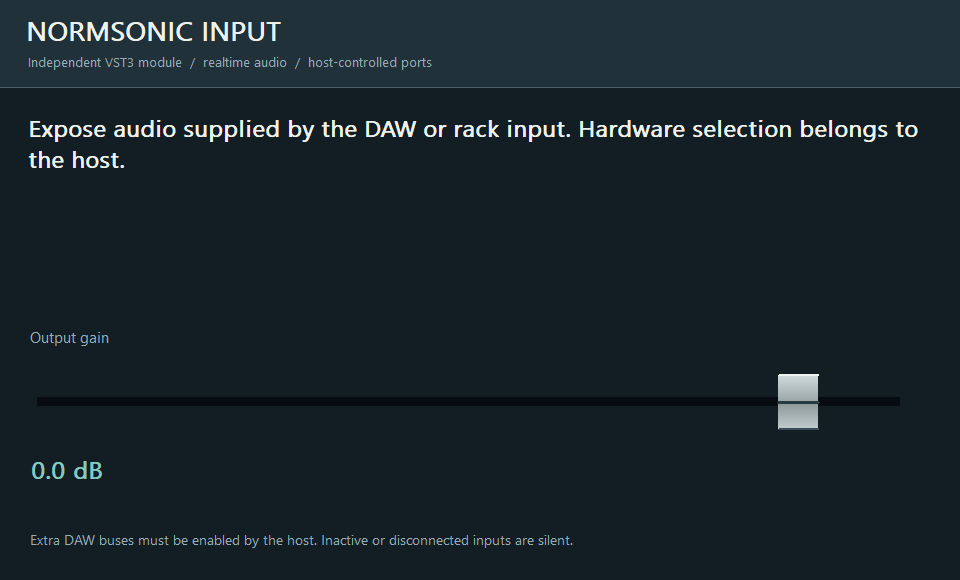
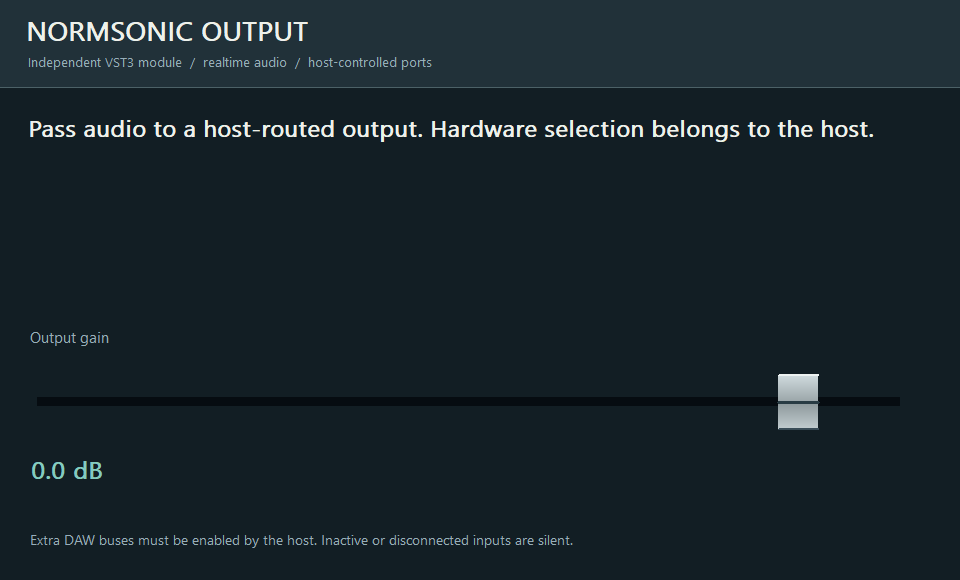
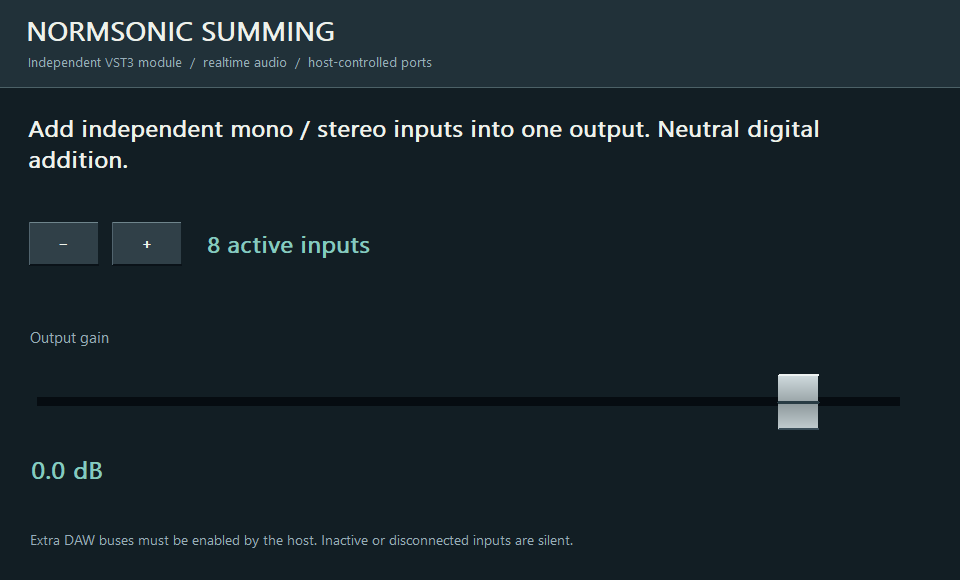
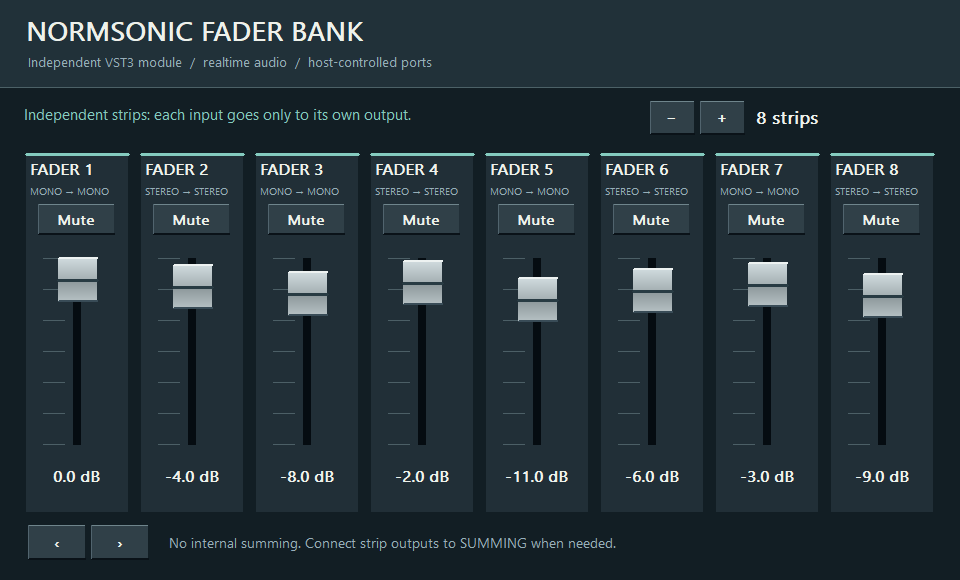
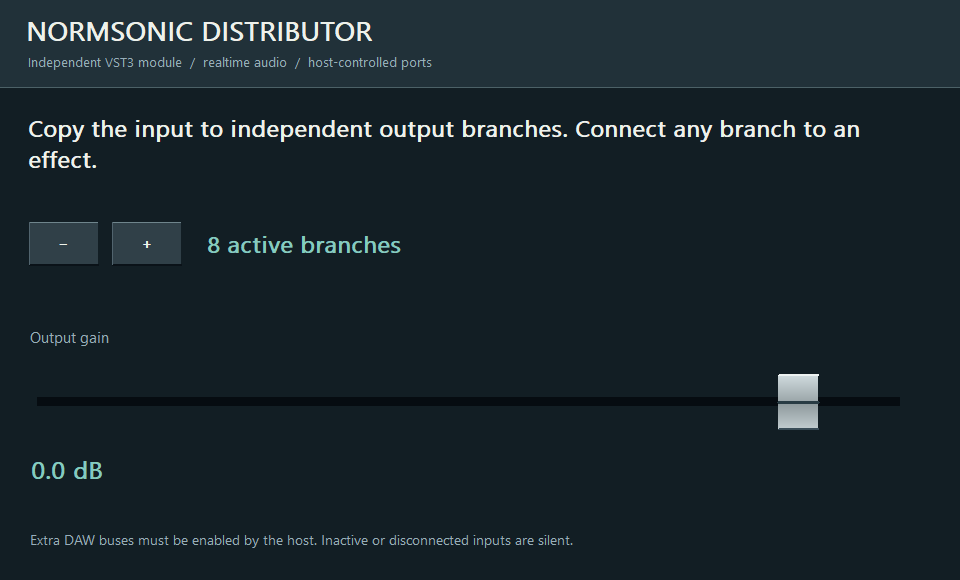
Use each utility in RACK or download it separately for a compatible VST3 host. The DAW decides which input and output buses it exposes.
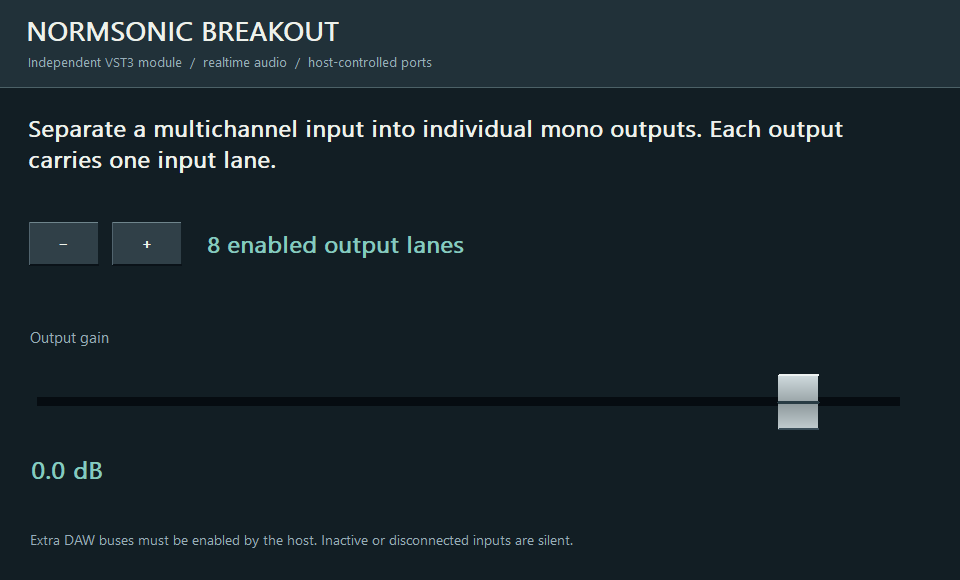
Split individual channels out of a multichannel source.
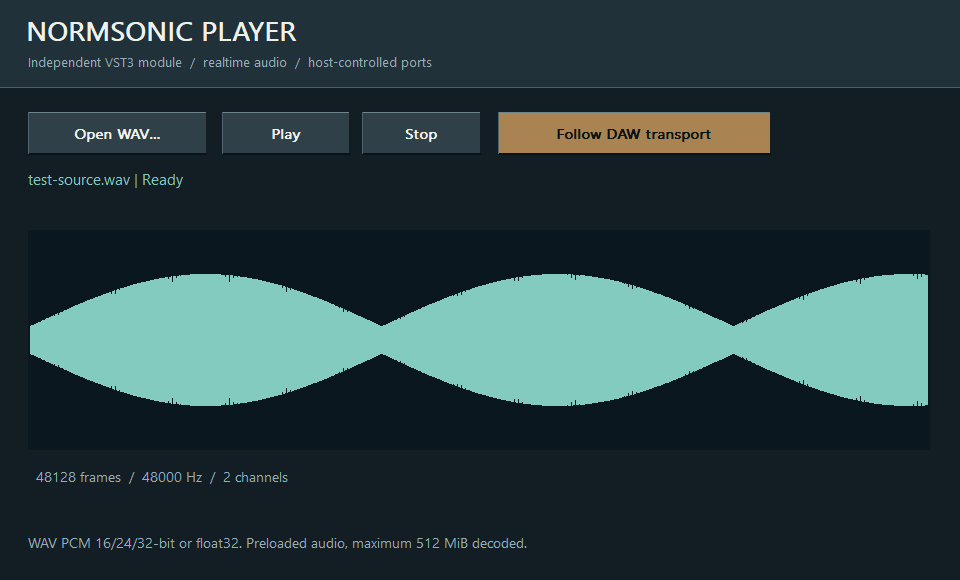
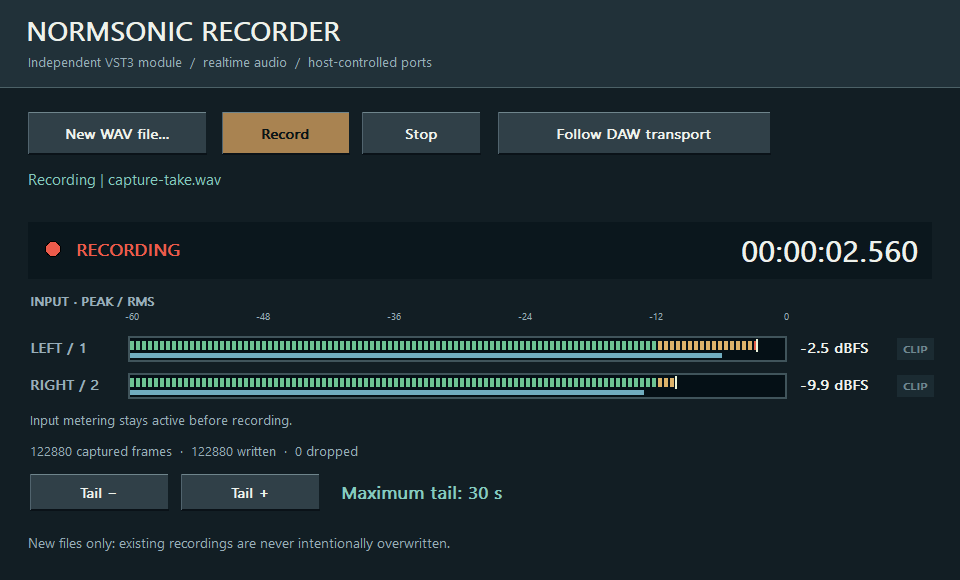
Player and Recorder have Browse controls on their RACK front panels and in their settings. Windows opens a file browser so you can choose a source WAV or a new recording destination. The current configured location seeds the browser when available; Cancel leaves that choice unchanged.
Use VST3 / CLAP to load an installed third-party plugin. For VST3, choose its .vst3 file or .vst3 bundle folder; for CLAP, choose its .clap file. File and folder selection are separate choices. After loading, connect the plugin audio ports with virtual cables.
Open patch and Save patch use Windows file dialogs for .nsrack projects. Start from the current project location when available, choose the destination and confirm. Cancel keeps the current project. Stop recording before opening another patch; an existing recording is protected and new takes use a new destination instead of overwriting it.
A selected output path is preparation, not a recording. Arm Recorder, then start it manually or through Player Sync. Check REC and the elapsed time, and wait for WAV SAVED after the effect tail and disk writes finish.
The L/R input display shows peak and RMS levels whenever the host processes audio, including when the recorder is disarmed. The clipping indicator also checks additional input channels and holds for two seconds after a sample reaches 0 dBFS. Stopping the audio engine clears the meters. Input activity shows signal, not recording.
A separate REC light confirms active recording; the time counter follows accepted audio frames. Armed/ready is waiting, TAIL continues recording the effect tail, FINALIZING finishes queued disk writes and WAV SAVED / finalized means the file has closed. Check error and dropped-frame notices before trusting a take.
VST3 hosts expose and activate auxiliary buses differently. Enable the plugin’s extra inputs and outputs in your DAW. If your host supports only a stereo insert, use the main pair or run the full graph in RACK.
No. In a DAW they work with the audio buses supplied by that DAW. Standalone RACK opens the selected physical interface and its modules address its channels.
No. Digital summing is the neutral default. Analog-inspired saturation is an optional creative effect, not a requirement for combining signals.